From 25 February 2026, the United Kingdom has switched to a digital visa issuance system for most visa routes, including the Standard Visitor visa. Many people expect a PDF file or a printable document when they hear about an electronic visa. But the UK’s digital immigration system works differently. There is no file to download. Instead, your UK visa now exists as an online record of your immigration status, stored securely in the UKVI system.
In this guide we’ll explain exactly what it means for you “how to download a UK visa”. We’ll walk you through how to access your UK eVisa, check your details, generate a share code, and prove your status to airlines, employers, and landlords.
Can you download a UK visa? How the eVisa really works
Let’s clear up the biggest misconception right away. The UK visa is now a digital status linked to your passport. It is stored in the secure database, and you access it through your UKVI account online. You do not receive a downloadable file. Instead, you get access to your eVisa through the mobile app or on the gov.uk website.
What you can save for your own reference are screenshots of your status page or your decision letter. However, these screenshots are not official documents. All formal checks — by airlines, employers, or landlords — are conducted online using your passport details or a share code. This system ensures that your immigration status can be verified instantly and securely from anywhere in the world.
What is a UK eVisa?
An eVisa is a digital record of your right to enter and stay in the United Kingdom. It is not a physical document or a file on your device. Instead, it is an online entry in the UK Visas and Immigration (UKVI) system, linked directly to your passport.
Your eVisa contains important information about your immigration status, including:
- Your visa type (for example, Skilled Worker, Standard Visitor, Student)
- The start and end dates of your visa validity
- Any conditions attached to your visa, such as work restrictions or no recourse to public funds
The UK eVisa system has replaced several older formats. Most biometric residence permits (BRPs) expired on 31 December 2024, although the visa itself remained valid. From 25 February 2026, physical visa vignettes (stickers) in passports are no longer issued for most new visa applications, including Standard Visitor visas. The eVisa is now the primary and official record of your immigration permission.
Need fast, professional visa assistance?
Contact our team
How to set up your UKVI account
To access your UK eVisa, you must first create a UKVI account. This is a free process that takes about 15 to 30 minutes, depending on how smoothly the identity verification goes.
What you’ll need before you start
Before you begin, gather the following items
- A valid passport
- A personal email address
- A mobile phone number
- Your visa application number (GWF or UAN) if you applied recently, or your BRP number if you had one
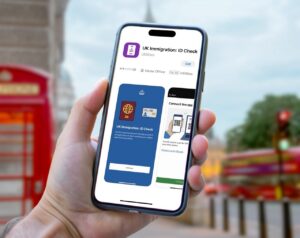
- A smartphone (iOS or Android) with the “UK Immigration: ID Check” app installed
If you don’t have a smartphone, alternative identity verification methods are available, but they may take longer and require you to visit a visa application centre.
Step-by-step instructions
Step 1: Download the app and start your application
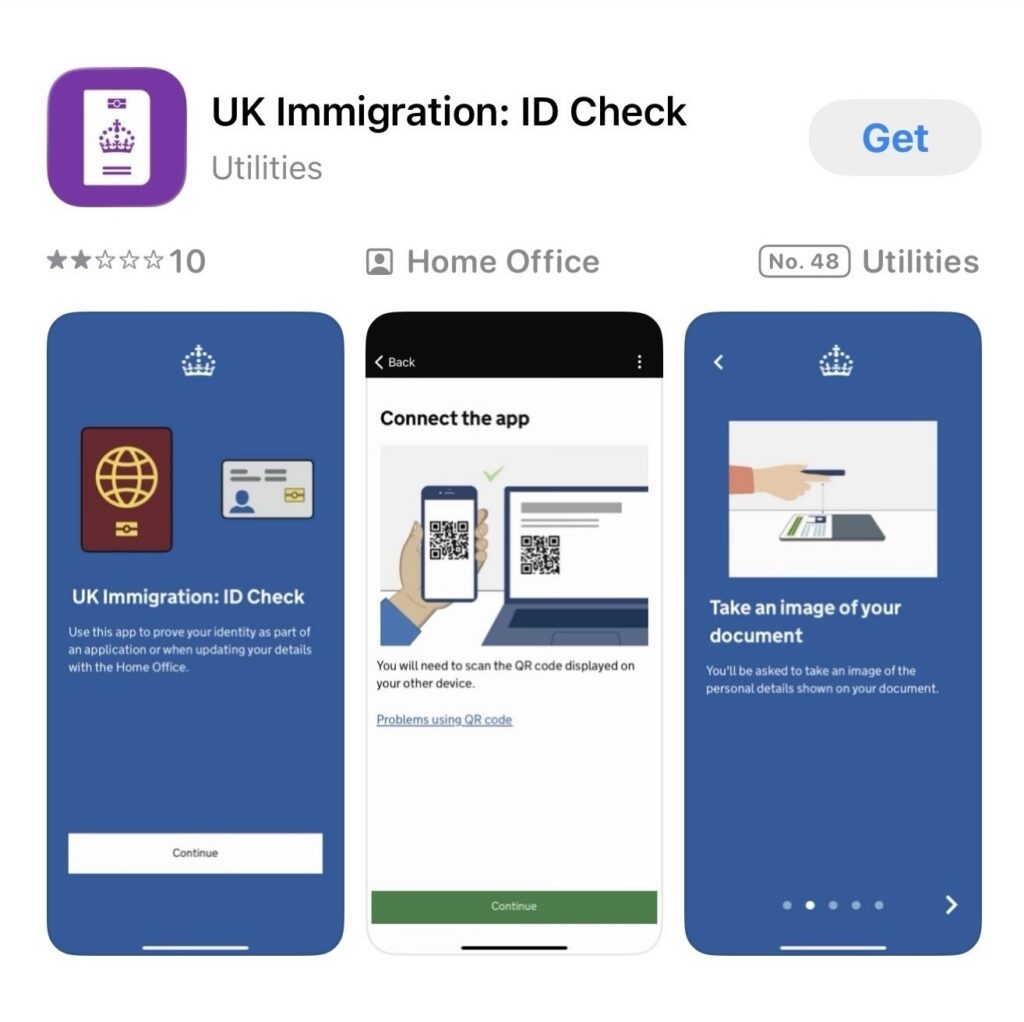
Install the official “UK Immigration: ID Check” app from the App Store or Google Play Store. Then go to the official UKVI account creation page and click “Start” or “Set up a UKVI account.”
Then go to the official UKVI account creation page and click “Start” or “Set up a UKVI account.”
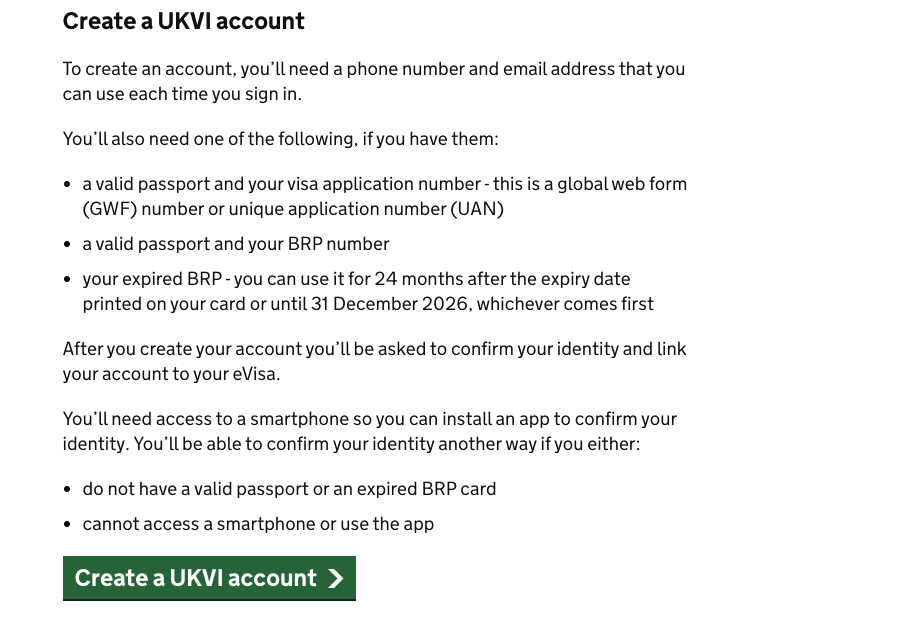
Fill in the online form with your full name, date of birth, nationality, contact details, and passport number. Create a strong password and choose your security questions. Make sure you remember your answers, as you will need them if you ever forget your password.
Step 2: Verify your identity using the app
After you submit the form, you will receive an email with instructions for identity verification. Open the ID Check app on your smartphone and follow the prompts to:
- Scan the biometric page of your passport (the page with your photo)
- Scan your passport’s chip (if your passport has one)
- Perform a facial scan and take a photo of yourself
The photo you take during this step will appear on your eVisa record. Once your identity is confirmed, you will be redirected back to the UKVI website to complete the process.
You will then receive a confirmation email from the Home Office. Access to your eVisa can open within a few minutes or take up to several days. If you don’t see your status immediately, don’t panic — verification sometimes takes a little longer.
Step 3: Log in to the view and prove service
1.Go to the “View and Prove your immigration status” portal at www.gov.uk/view-prove-immigration-status.
2.Log in using your email address and password. The system will then send a 6-digit code to your phone or email for two-factor authentication. Enter the code to complete your login.
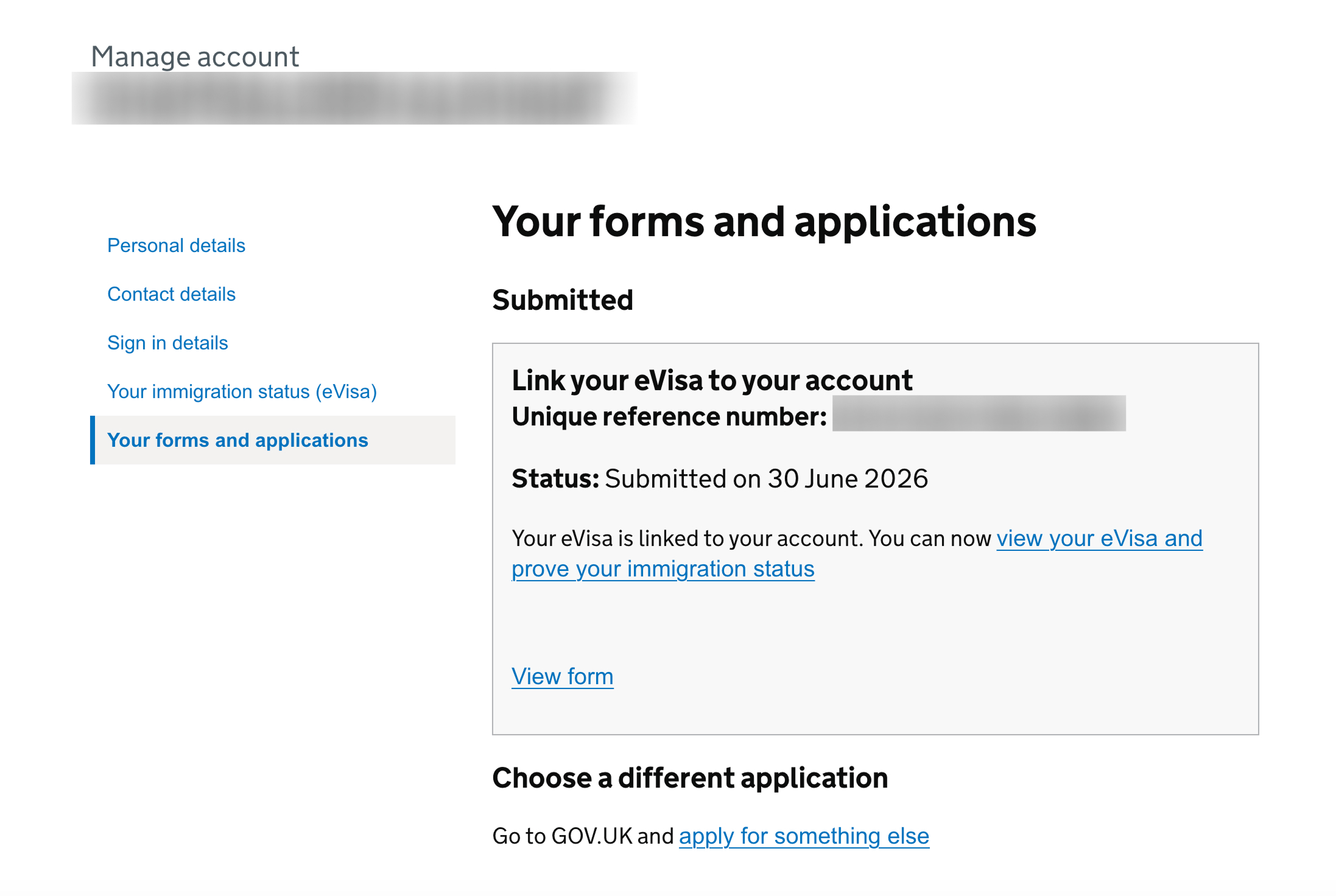
Step 4: Check your visa details
On your profile page, you will see all the details of your immigration status. Take a moment to carefully review:
- The type of visa you hold (for example, Skilled Worker, Visitor, or Student)
- The start date and expiry date of your visa
- Any conditions, such as whether you are allowed to work or if you have restrictions on claiming public funds
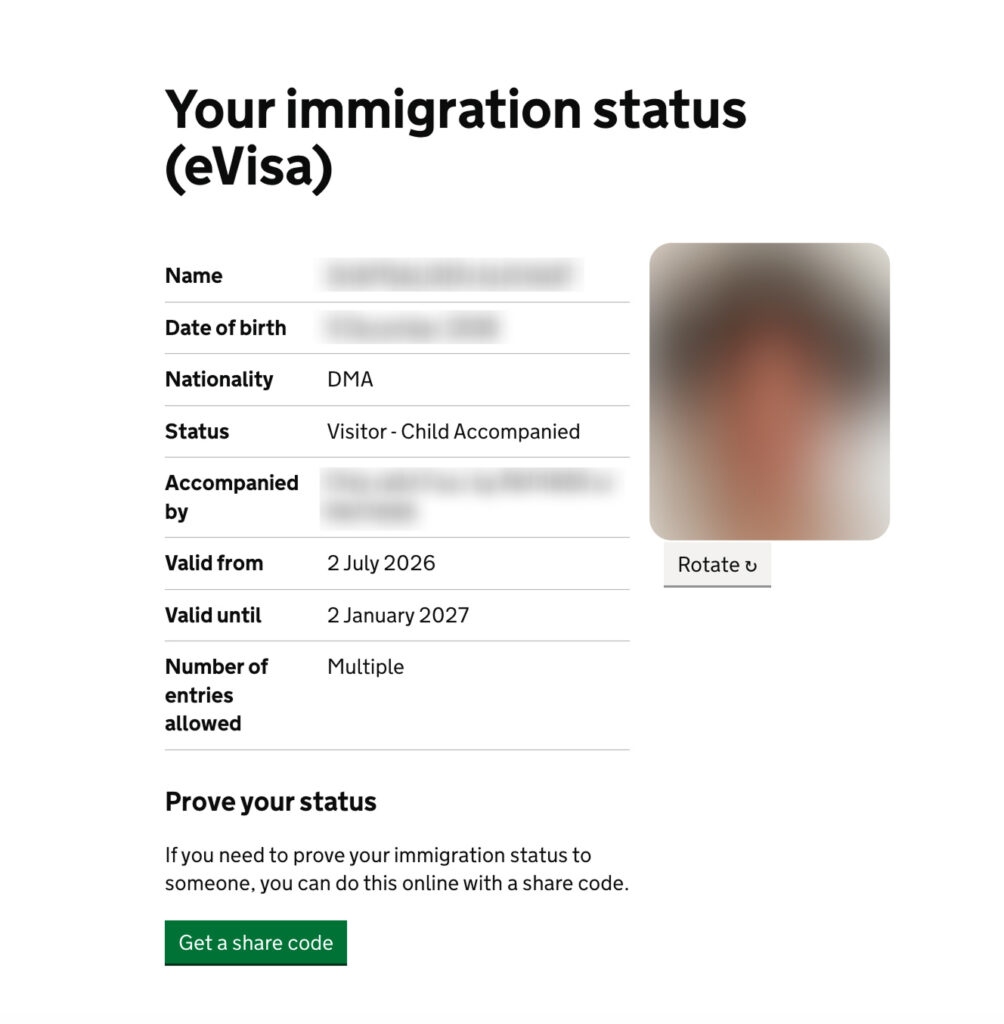
If you notice any errors — for example, a misspelled name or an incorrect date of birth — report the error immediately using the online error reporting form on gov.uk. Do not delay, as incorrect details can cause problems when you travel or apply for services.
Step 5: Generate and share a share code
One of the most important features of the UK eVisa system is the share code. A share code is a temporary, 9-character code that allows third parties to verify your immigration status online. It is valid for 90 days from the moment you generate it.
How to get a share code
- Log in to your UKVI account through the “View and Prove” service.
- Click “Prove your status” or “Get a share code.”
- Select the purpose for which you need to prove your status. For example: to show an airline before boarding a flight, to confirm your right to work for an employe, to prove your right to rent to a landlord.
- The system will generate a 9-character code. Write it down or copy it carefully.
How to prove your UK visa when you travel
Since there is no physical sticker in your passport, you need to prepare differently for travel. Here’s how to ensure a smooth journey.
Before you go to the airport
- Make sure your passport is linked to your UKVI account. If you recently renewed your passport, update your details online before you travel.
- Generate a share code before departure. The code is valid for 90 days, so you can generate it several weeks before your trip if you will be returning within that timeframe. This saves you from trying to do it at the last minute.
- Save screenshots of your visa status and share code on your phone. These are not official documents, but they can help you explain your situation quickly if you have internet issues. The airline will still perform an official online check, but having the screenshots can speed things up.
At the airport
When you check in, present your valid passport. The airline will typically check your immigration status automatically through the Home Office system using your passport details. Some carriers may ask you to provide a share code instead or in addition. If they do, simply show them the 9-character code you generated earlier.
At the UK border
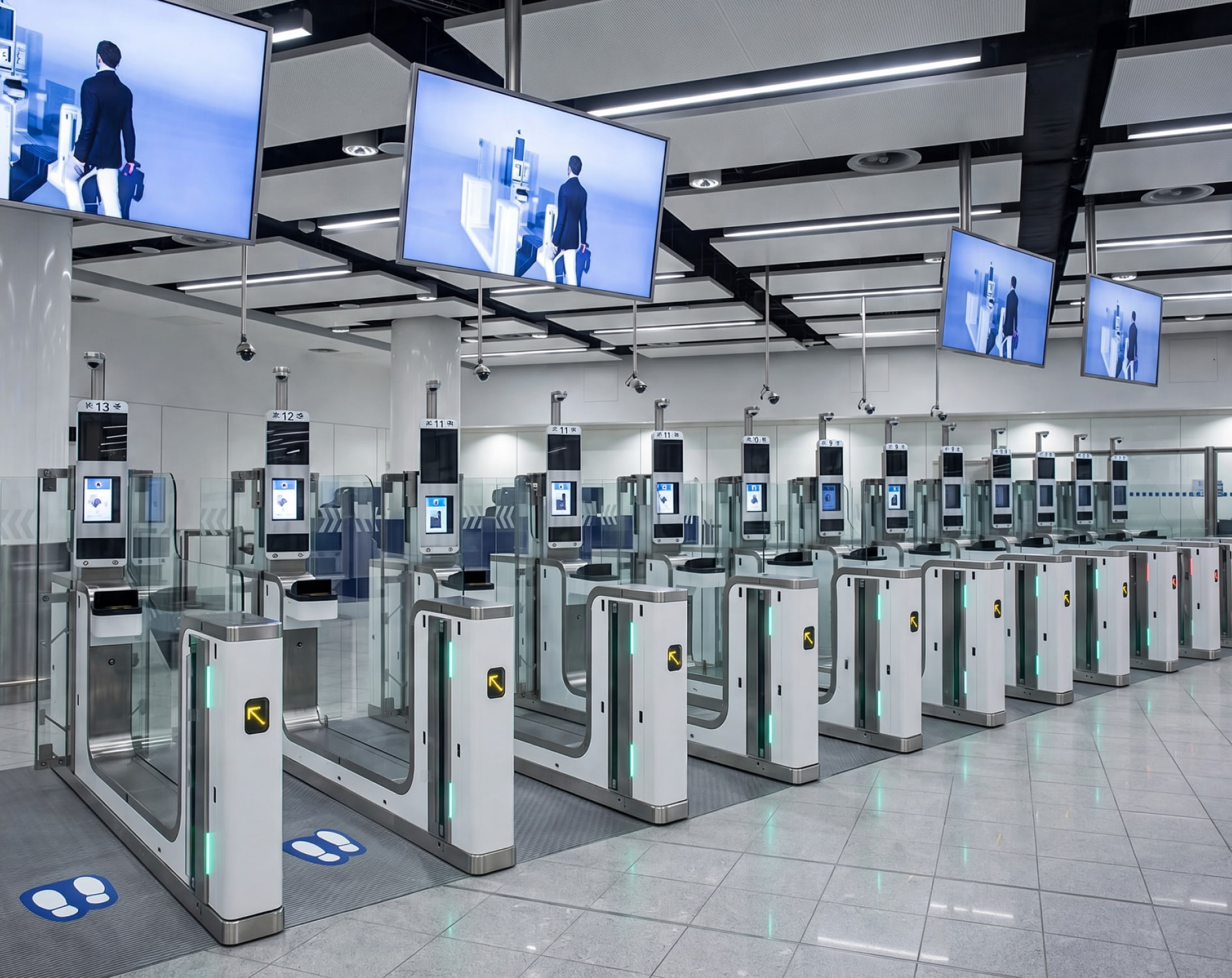
Border officers can access your eVisa details directly using your passport. You do not need to show a share code at the UK border, but it’s always a good idea to have one ready just in case.
What to do if you can’t access your account
Sometimes, users run into issues when trying to access their UKVI account or view their eVisa. Here’s what to do in the most common situations.
Double-check your login details
Make sure you are entering the correct email address, password, and date of birth. It’s easy to mistype one character, especially if you’re stressed or in a hurry. Use the “show password” option if available to see what you’re typing.
Use the password recovery option
If you’ve forgotten your password, click the “Forgot password?” link on the login page. You’ll be asked to confirm your identity using your email address and security questions. Once verified, you can reset your password and regain access.
Wait a bit longer after verification
Sometimes, access to your eVisa is not immediate after identity verification. The Home Office may take a few hours or even days to complete the process. Check your email (including your spam folder) for confirmation messages. If it has been more than a week, contact the UKVI Resolution Centre.
Contact UKVI support
If none of the above works, reach out to the UKVI Resolution Centre through the official gov.uk contact page. Have your passport number and visa application reference number ready when you call or submit an enquiry.
Need fast, professional visa assistance?
Contact our team
This guide is for informational purposes only and does not constitute legal or immigration advice. UK Visas and Immigration procedures and fees are subject to change. Always verify the current process on the official gov.uk website before taking any action.
Can I download my UK visa as a PDF?
No. The UK visa is not a PDF file or any other downloadable document. It is a digital immigration status stored in the UKVI system. You access it online through your account. You can take a screenshot of your status for personal reference, but this is not an official document.
How do I access my UK eVisa?
You need to create a UKVI account on the gov.uk website, verify your identity using the UK Immigration: ID Check app, and log in to the “View and Prove your immigration status” service. Once logged in, you can view your visa details and generate a share code.
What is a UK share code?
A share code is a temporary 9-character code that allows a third party—such as an airline, employer, or landlord—to verify your immigration status online. The code is valid for 90 days from the date it is generated.
Do UK visas still come as a sticker in the passport?
For most new visas, including the Standard Visitor visa, physical vignettes (stickers) are no longer issued from 25 February 2026. Your visa is now fully digital and linked to your passport. Older visas may still have stickers, but new applications do not.
How do I prove my UK visa to an airline?
Present your valid passport at check-in. Airlines can check your immigration status automatically through the Home Office system. Some carriers may ask you to provide a share code, which you can generate in your UKVI account before departure.
What if I can’t access my UKVI account?
Double-check your login details, use the password recovery option, and wait a reasonable time if you’ve just completed identity verification. If the issue persists, contact the UKVI Support Centre through the official gov.uk page.